Launching a Training Session
A Training Session is your workspace for training surrogate models in AI Physics. Inside a Training Session, you have access to AI Physics Training (a web-based interface) where you create models, select simulation data, configure inputs and outputs, and launch training runs.
Before you can train a surrogate model, you need simulation data that covers the input space you want the model to predict over. This section walks you through preparing simulation jobs and launching a Training Session ready for model creation.
Highlights
- Automated data extraction: Enable Automations on your Rescale jobs to prepare simulation results for AI training automatically
- Design of experiments (DOE): Run parameter sweeps covering your input space
- Training Session workstation: Access AI Physics Training to create and train models
- Tutorial examples: Follow pre-built examples to learn the full workflow before running your own simulations
Prerequisites
Before you begin:
- AI Physics must be enabled for your organization. If you don't see Model Builder or AI Models in the Rescale side navigation, contact your Rescale representative.
- Create an API key from your User Profile Settings to enable AI Model creation in the Rescale platform.
Prepare Simulation Jobs
Before training a surrogate model, you need simulation data that covers the input space you want the model to predict over. A surrogate model learns patterns from completed simulation results. More coverage and higher quality data lead to better predictions.
Run a Design of Experiments (DOE)
Run a parameter sweep or DOE that samples a representative range of your inputs. Each completed simulation becomes one training sample (called a "case" in your dataset).
How many jobs do I need?
- For problems with a small number of inputs and smooth, continuous outputs, a few dozen samples may be sufficient.
- High-dimensional inputs or highly non-linear responses (e.g., flow separation, phase changes, buckling) typically require hundreds of samples.
- Start with what you have and expand if model accuracy is insufficient after training.
Enable Data Preparation Automations
When setting up your Rescale jobs, enable two types of Automations so your results are ready for AI training:
Add Automations to a Job
- From the Rescale platform, open or create a job.
- Navigate to the Automations tab in the job configuration.
- Locate and enable the Metadata Extraction Automation for your solver.
- Enable the AI Extraction Automation for your solver.
- Submit and run your jobs as usual.
Tip: If you don't see Automations for your solver, contact your Rescale representative. Solver support is expanding over time.
Verify Job Completion
Once your DOE is complete, verify that:
- Each run finished successfully (no solver errors)
- Expected output files are present in job results
- Custom Fields populated by Metadata Extraction appear in the job details
These checks ensure your dataset will have consistent, complete data across all cases.
Launch a Training Session
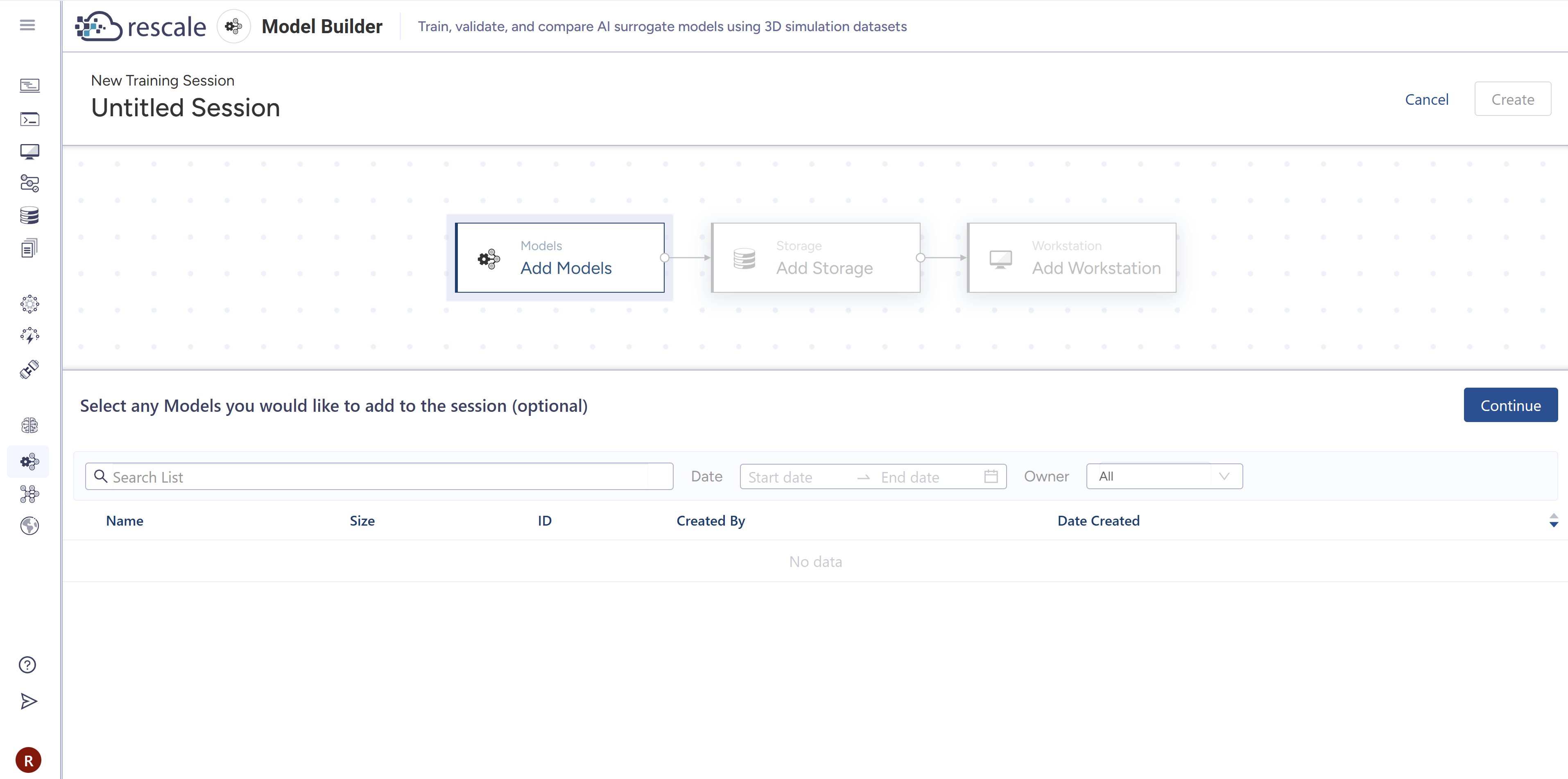
- From the Rescale platform, navigate to Model Builder in the left sidebar.
- Click New Training Session.
- Click Continue without selecting a Model (you'll create one inside the session).
- Click New Storage Device to create and configure a storage device for your model files, then click Continue.
- Add a Workstation and configure the workstation hardware. Click Create to launch the Training Session.
- Once the session is ready, click Open Session, then Open App to launch AI Physics Training.
Next Steps
Once your Training Session is running and AI Physics Training is open:
- Create your first model: See Training Surrogate Models to create a model, select your simulation data, configure inputs and outputs, and launch training.
- Explore tutorials: Use the tutorial examples in AI Physics Training to practice the full workflow before setting up your own DOE.
FAQ
What file formats does AI Extraction support? AI Extraction supports solver-specific output formats for simulation solvers. The Automation converts these to PyVista-compatible formats (VTK, VTU, or similar) for AI Physics Training. Contact your Rescale representative for the full list of supported solvers.
Can I use jobs I already ran without Automations enabled? No. The Metadata Extraction and AI Extraction Automations must be enabled before running the jobs. If you have existing job results, you'll need to re-run them with Automations enabled to use them for model training.
What if my cases have different mesh resolutions or geometries? AI Physics supports simulation data with varying mesh resolutions and geometries. This is expected for design space exploration. The surrogate model learns to adapt to these differences during training. However, all cases must use the same solver and output the same set of physical variables (e.g., all cases must include pressure, velocity, temperature).
How do I know if I have enough simulation jobs for training? There's no universal rule. It depends on your input dimensionality and physics complexity. Start by training a model with the data you have. If the R² score is low (see Training Surrogate Models), expand your DOE and add more cases.
Can I include failed simulation jobs? No. Only include jobs that completed successfully with valid solver results. Failed jobs will cause validation errors during model creation.
What are Custom Fields, and why do they matter? Custom Fields are user-defined metadata tags on Rescale jobs. The Metadata Extraction Automation automatically populates Custom Fields with input variable values extracted from your solver files. These become the input variables for your surrogate model (e.g., angle of attack, Mach number, Reynolds number). Without Custom Fields, the model won't know which inputs to train on.