Improved Workflow Execution for Faster Recovery and Resource Control
Three new capabilities give you finer control over how workflows run, how they handle failures, and how you recover when something goes wrong. You can now configure failure behavior per node, limit how many nodes run at once, and retry a partially failed run without re-running nodes that already succeeded.
Release Highlights
What is it?
- Node-Level Failure Controls — Previously, the “continue on failure” setting applied to the entire workflow. Now you control it per node. Under Node Properties in each node’s configuration panel, toggle Continue workflow execution if this node fails to let independent branches keep running when that node fails. Only the failed node’s downstream dependents are blocked — everything else keeps going.
To apply the setting across all nodes at once, open Workflow Settings and click Set For All Nodes next to Continue on Failure. You can then override individual nodes as needed.
Note: Decision node failures still halt the workflow, since the system cannot determine which path to take without the decision result.
- Concurrent Node Limits — You can now cap how many nodes run at the same time in a workflow. In Workflow Settings, enable Concurrent Nodes and set the maximum with the numeric stepper. When the limit is reached, additional ready nodes wait until a running node completes.
This is useful when your workflow runs commercial solver software with a limited number of licenses — set the concurrency limit to match your available license count so the workflow never consumes more licenses than you have.
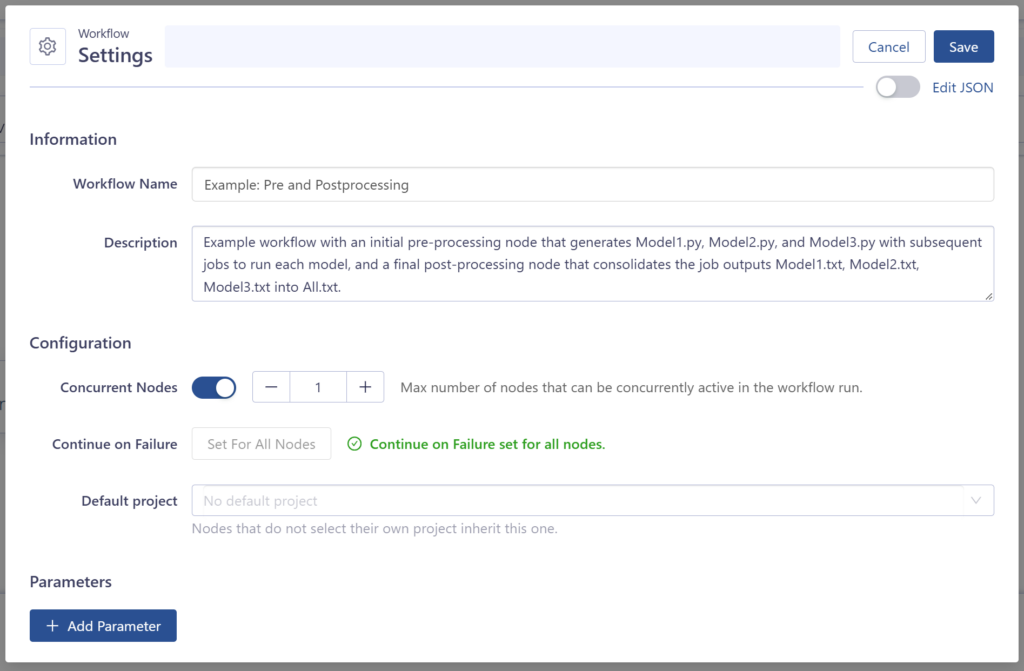
Set the max number of concurrently active nodes in Workflow Settings
- Retry Failed Workflow Runs — When a workflow run has failed nodes, click Retry on the run to fix what went wrong and re-run only what needs to re-run. Clicking Retry opens the workflow template editor with a color-coded overlay showing the status of each node:
Green: Completed, can be reused — succeeded and unchanged, will be skipped
- Red: Failed, will retry — failed or never ran, will re-execute
- Orange: Changed or downstream of a change, will re-run — configuration was modified or depends on a node that changed
- Gray: Did not run, will run — blocked by an upstream failure, will execute for the first time
Fix the configuration that caused the failure directly in the template, then click Retry Workflow to launch the continuation run. Nodes that succeeded and haven’t changed are skipped — their outputs are reused from the original run. The retried run links back to the original for traceability.
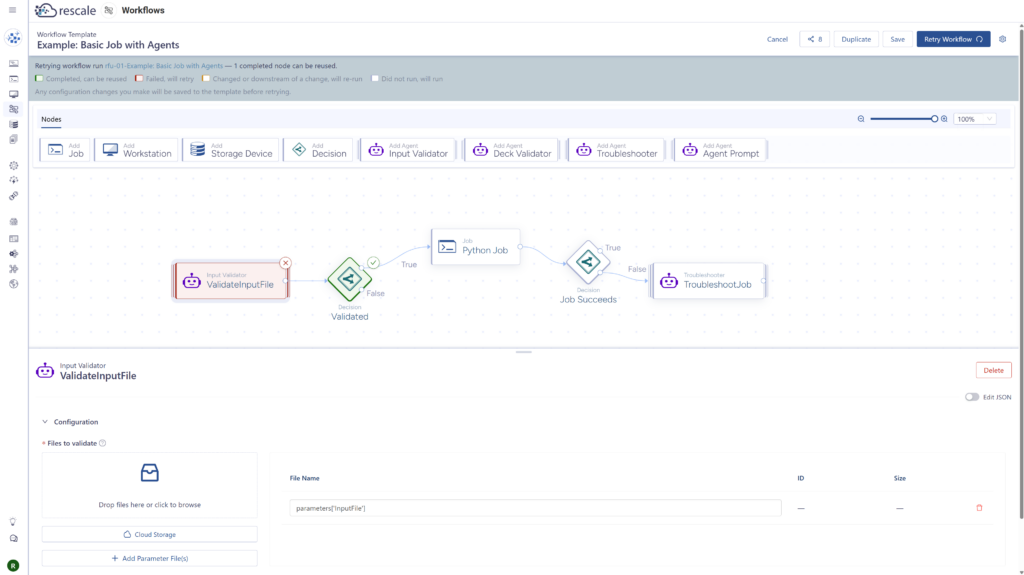
Review which nodes will re-run and which will be reused before confirming the retry
Why did we build it?
Teams running large, multi-branch workflows — dozens of nodes with hundreds of monthly runs — told us they needed three things: the workflow should compute everything it can when one node fails instead of halting the entire graph; they need to recover from failures without re-running jobs that already succeeded; and they need concurrency controls to stay within solver license limits.
These features bring Rescale Workflows in line with the reliability controls that production simulation teams expect from a workflow orchestration system.
How is it used? By whom?
- Simulation engineers running multi-branch workflows can let healthy branches finish even when one branch fails, and retry failed runs without starting over.
- Workflow template builders can configure per-node failure behavior and concurrency limits in the template so end users get the right defaults without manual setup.
- Teams with license constraints for commercial solvers (ANSYS, Abaqus, LS-DYNA, etc.) can cap concurrent nodes to stay within their license count.
Getting Started
To configure node-level failure controls:
- Open a workflow template and select a node.
- Scroll to the Node Properties section in the configuration panel.
- Enable Continue workflow execution if this node fails.
- Repeat for each node, or open Workflow Settings (gear icon) and click Set For All Nodes to apply it to every node at once.
To set a concurrency limit:
- Open a workflow template and click the gear icon to open Workflow Settings.
- Enable the Concurrent Nodes toggle.
- Use the stepper to set the maximum number of nodes that can be active at the same time.
To retry a failed workflow run:
- Open a workflow run that has failed or partially failed nodes.
- Click Retry in the upper right corner.
- Review the color-coded node status to see what will re-run.
- Edit the template to fix the configuration that caused the failure.
- Click Retry Workflow to launch the continuation run.
For additional information, check out the Workflows documentation.