Workflows
Rescale Workflows lets your team build, share, and run reusable multi-step simulation pipelines on the Rescale platform. A Workflow Template is a connected graph of nodes (jobs, workstations, storage devices, decision logic, and agents) that you configure once and run repeatedly with different inputs. This eliminates manual handoffs between pipeline stages and preserves your team's simulation best practices in a format any engineer can execute.
Benefits
Visual template builder Compose multi-step simulation pipelines on a drag-and-drop canvas without scripting.
Two-persona design Template builders configure the workflow once; runners execute it by providing only the inputs required for each run.
Conditional logic Use Decision nodes to route execution based on outputs from upstream steps (for example, selecting hardware based on mesh size).
Managed data transfer Shared storage connects nodes so that output files from one step are automatically available to the next.
Reusable, shareable templates Save templates and share them across your team so your best simulation processes become organizational assets.
Per-node failure controls Decide for each node whether its failure stops the run or only the branch that depends on it, so one broken step does not discard the work that succeeded alongside it.
Concurrency limits Cap how many nodes run at the same time, which matters when the nodes compete for a fixed pool of software licenses or shared cluster capacity.
Retry without starting over Retry a partially failed run and Rescale re-executes only the failed nodes, the ones you changed, and whatever depends on them. Everything that already succeeded is reused.
Key concepts
Three objects describe workflows on Rescale: a workflow template is the reusable definition, a workflow run is one execution of it, and a node is one unit of work inside it.
Workflow template
A workflow template is a directed acyclic graph (DAG) that describes work to run on Rescale. It is a template that can be run multiple times. Running it produces a workflow run.
A workflow template has two things: a list of nodes and a list of edges. Nodes hold the work (a job, a workstation, a storage device, a decision). Edges are dependencies. A node runs after every upstream node it depends on has completed.
Workflow templates are persistent. You create one, then submit it as many times as you need. Each submission creates a new run with its own status, logs, and outputs.
Workflow run
A workflow run is one execution of a workflow template. It tracks the status of every node as the DAG progresses.
Submitting a workflow template creates a new run. The run starts in queued, moves to running when the first node starts, and ends in one of completed, failed, or stopped. Node-level status lives inside the run object and updates as the DAG advances.
A run references the workflow template by ID but does not share mutable state with it. Editing the workflow template after submission does not change any run that was already created.
Node
A node is one unit of work inside a workflow. Every node has a type and a data payload specific to that type.
Nodes are the vertices of the DAG. Edges connect them. A node runs after every upstream dependency has completed. The payload shape depends on the node type: a job node describes hardware, software, and input files; a workstation node describes an interactive session; a decision node routes the graph based on an expression.
Each run carries per-node status and logs. Inspect a node by reading its entry in the run object.
Prerequisites
Before building or running a workflow:
- You must have access to a Rescale account with Workflows enabled. Contact your Rescale representative to enable Workflows for your account.
- To run a workflow, you must be the workflow template owner or ensure the workflow template is shared with you.
Get started
Ready to build and run your first workflow?
- Build a Workflow Template. Create a reusable multi-step pipeline
- Run a Workflow. Execute a template with your inputs
- Workflow templates from Rescale. Start from a template Rescale provides instead of a blank canvas
Common use cases
Rescale Workflows covers the most common multi-step simulation pipeline patterns.
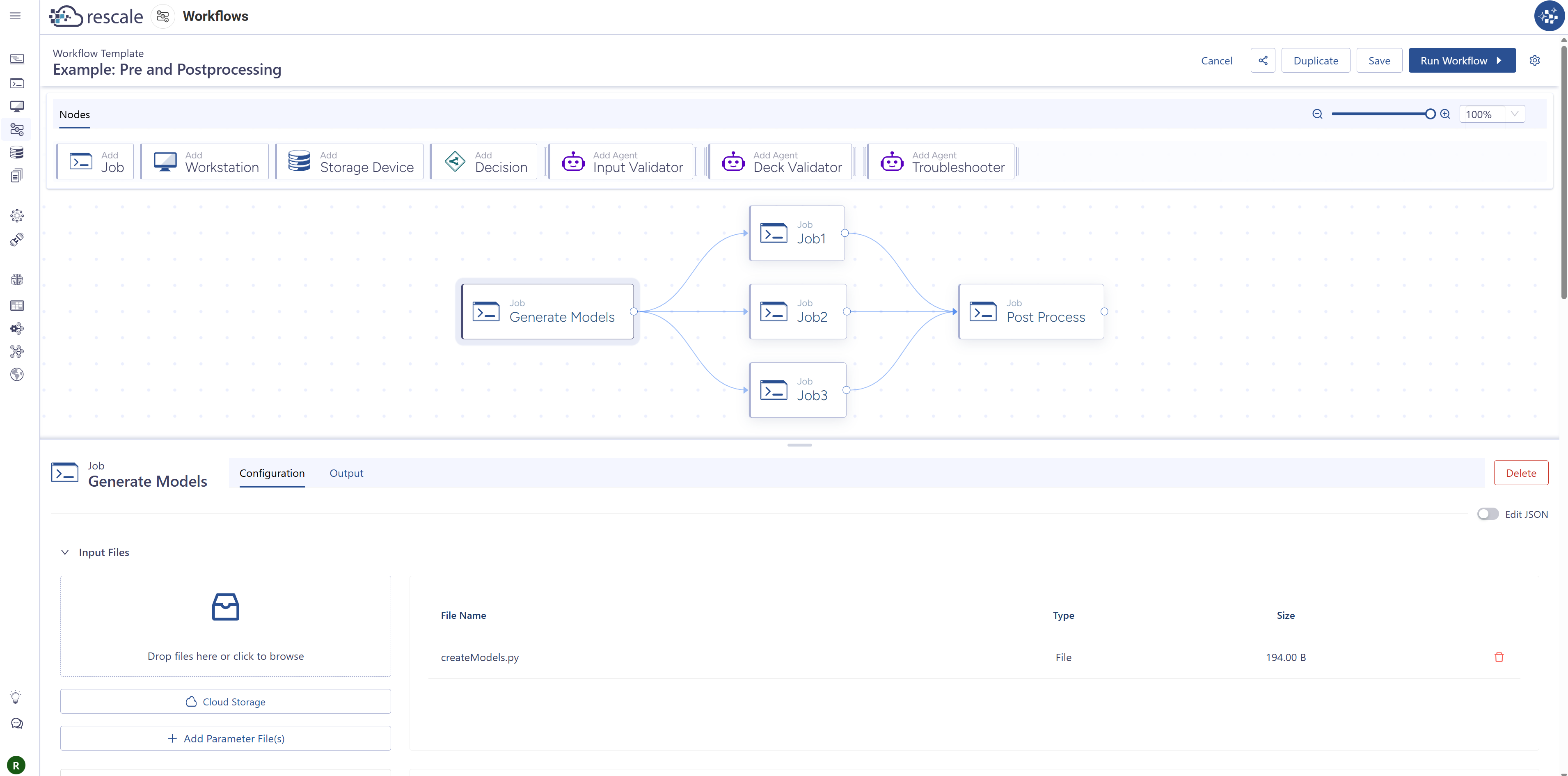
Pre- and post-processing pipelines
Chain pre-processing, solver, and post-processing steps in a single template:
- A Workstation or Job node generates the mesh or input files
- One or more Job nodes run the solver — in parallel across parameter variations if needed
- A final Job node aggregates and formats results
File transfers between steps are handled automatically. No manual data movement is needed between stages.
Conditional hardware selection
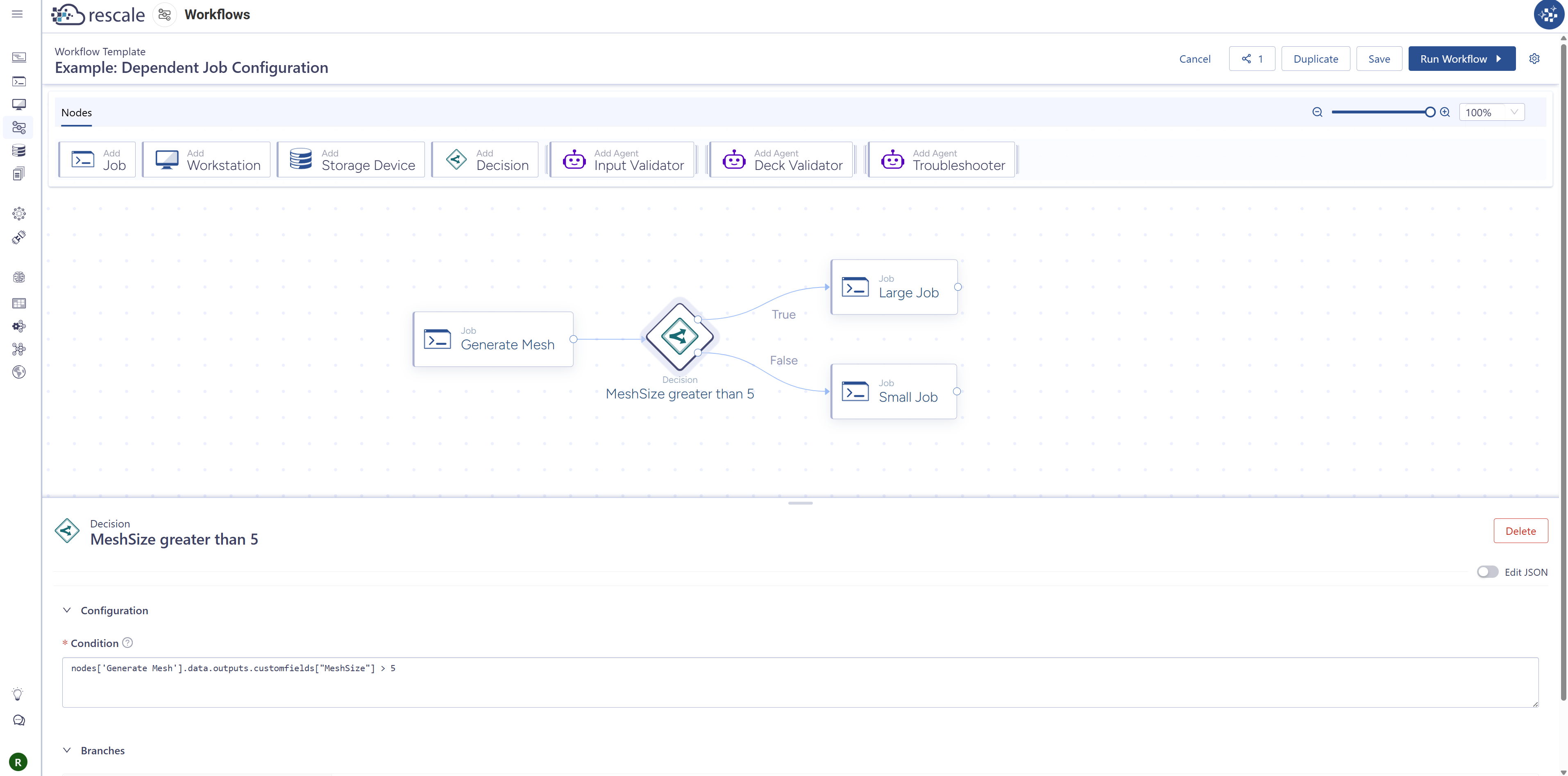
Use a Decision node to route execution based on outputs from an upstream step. For example:
- A pre-processing Job generates a mesh and outputs mesh size information
- A Decision node evaluates mesh size information
- Based on the evaluation, the workflow routes automatically to a smaller or larger hardware configuration for the solver Job
Multi-program template management
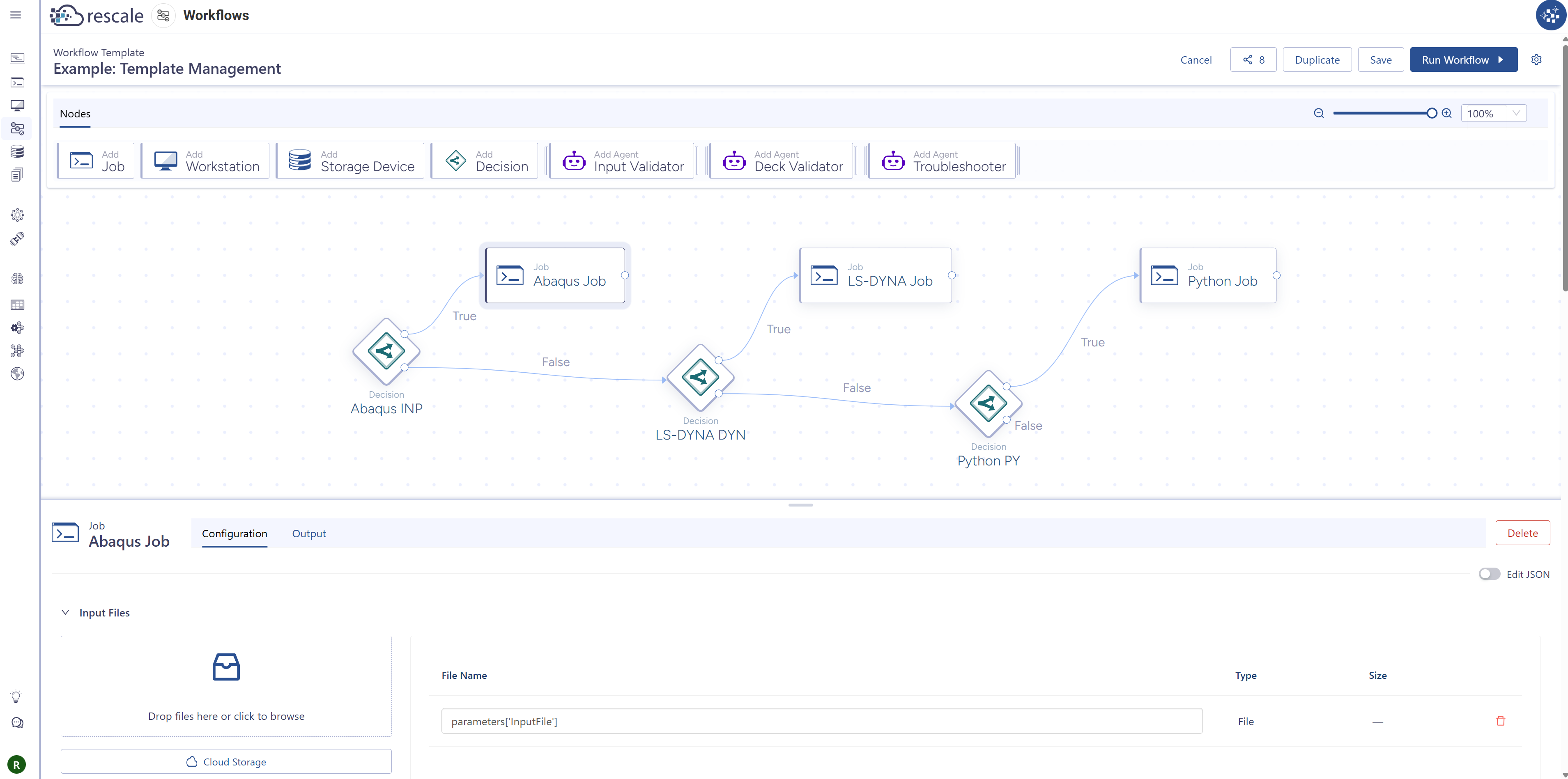
Build a single template that routes to different job or workstation nodes based on a run-time parameter value. For example, a methods developer or simulation expert controls best practices for many different types of simulations. The runner simply selects the type of simulation they want to perform, and the workflow handles the rest. This enforces consistency across users without maintaining separate templates for each configuration or type of simulation.
FAQs
Can I run jobs in parallel within a workflow? Yes. Connect one upstream node to multiple downstream nodes to run them in parallel. All parallel branches start when the upstream node completes, and any node downstream of all of them waits until every branch has finished.
What is the difference between a Workflow Template and a Workflow Run? A Workflow Template is the saved configuration: the node structure, connections, and parameters. A Workflow Run is an active instance created when someone submits the template with specific parameter values. Each run is independent and does not modify the underlying template.
Can I edit a workflow template after sharing it? Yes. You can edit your own template at any time. If you share a template with someone else as a Viewer, they can run and view it, but they cannot edit it. If you share a template with someone else as an Editor, they can run, view, and edit it. Changes to the template do not affect runs that are already in progress.
Can I reuse files or storage across multiple workflow runs? Yes. If you use a Storage Device parameter, runners can select the same shared storage device across multiple runs, allowing them to build on results from previous runs or share data across campaigns. Use Output Fields to transfer individual files between nodes in a workflow run.
Who can see my workflow runs? Each workflow run is owned by the user who submitted it. Workflow run sharing is controlled by Folders, so submit the run or move the run to a folder with the appropriate access controls to share.
What happens if a node fails? By default a node failure blocks the nodes downstream of it. Enable Continue workflow execution if this node fails on a node and independent branches keep running instead. You can set this per node, or apply it to every node from Workflow Settings. A Decision node's own failure always halts the workflow.
Can I limit how many nodes run at the same time? Yes. In Workflow Settings, enable Concurrent Nodes and set a maximum. Once the limit is reached, further ready nodes wait until a running node completes.
Can I retry a failed workflow run without re-running everything? Yes. Click Retry on a failed or partially failed run. Rescale marks which nodes will re-run, meaning the failed ones, the ones you changed, and anything downstream of a change, and which will be skipped because they succeeded and are unchanged. Fix the problem in the template, then click Retry Workflow.
Support
For questions or support, contact your Rescale representative or visit the Rescale Support Center.