Edison Node: Custom AI Steps in Your Workflows
Workflows now include a new node type — the Edison Node — that lets you add a custom AI step to any workflow. Instead of being limited to the pre-built agent nodes (Input Validator, Deck Validator, Troubleshooter), you can write your own prompt, pick which agent to invoke, and attach specific Connectors or Agentic Projects to shape how Edison responds.
This means you can build AI-powered validation, analysis, and decision steps directly into your workflow — without waiting for a purpose-built agent node to be added for your use case.
Release Highlights
What is it?
The Edison Node is a new workflow node that calls Edison (Rescale’s AI assistant) with a prompt you define. You control what the agent does by writing instructions in plain language, selecting which agent to use, and optionally attaching Connectors and Agentic Projects for additional context.
Why does it matter?
Before the Edison Node, adding AI to a workflow meant using one of the pre-built agent nodes — each designed for a specific task. If your use case didn’t fit an existing agent, you were stuck. The Edison Node removes that constraint.
You can now:
- Provide custom instructions to any Edison agent
- Give agents access to specific Connectors (data sources, tools) relevant to your workflow
- Attach Agentic Projects that tailor agent behavior to your domain or team’s needs
- Combine the Edison Node with Decision nodes to route workflows based on AI reasoning
How is it used?
Any user with access to Workflows can add an Edison Node from the workflow canvas. It’s available alongside the existing agent nodes (Input Validator, Deck Validator, Troubleshooter) in the node toolbar.
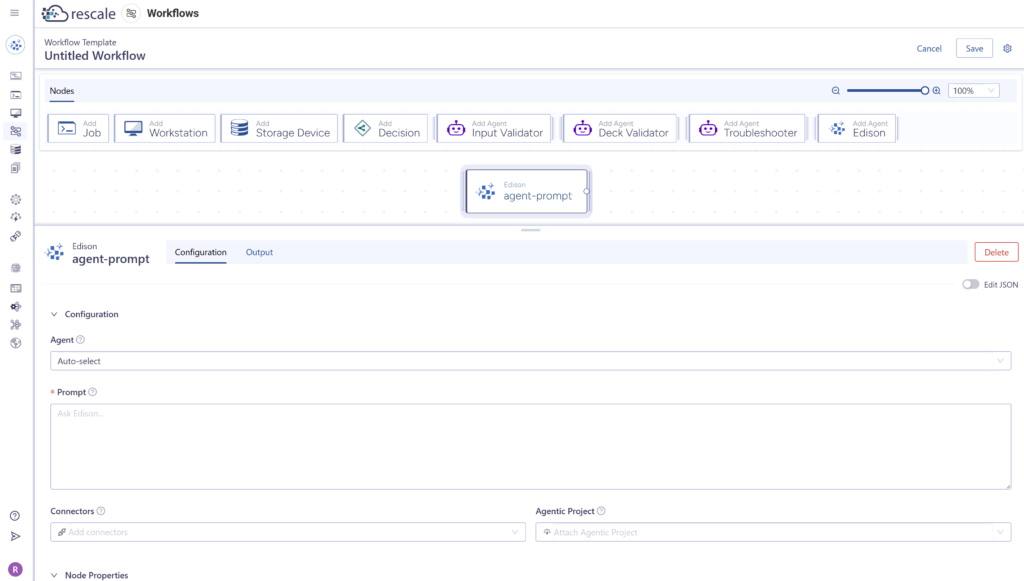
Getting Started
- Open the Workflows page and create a new workflow or edit an existing one.
- From the node toolbar, drag an Edison node onto the canvas
- Configure the node:
Agent — Choose a specific agent or leave on Auto-select to let Edison pick the best one for your prompt.
- Prompt — Write the instructions for what you want Edison to do at this step.
- Connectors (optional) — Attach data sources or tools the agent should have access to.
- Agentic Projects (optional) — Select a project that shapes the agent’s behavior for your use case.
- Connect the Edison Node to other nodes in your workflow (e.g., after a Job node to analyze results, or before a Decision node to drive conditional branching).
- Click Save, then Run Workflow to execute.
For more on building workflows, see the Workflows documentation.