Running workflows
Running a workflow uses a saved template. You provide the required inputs; the platform handles execution, sequencing, and data transfer automatically.
Open a workflow template
- In the left navigation, click Workflows.
- Click New Workflow, find the template you want to run (your own, or one shared with you) and click Use Template.
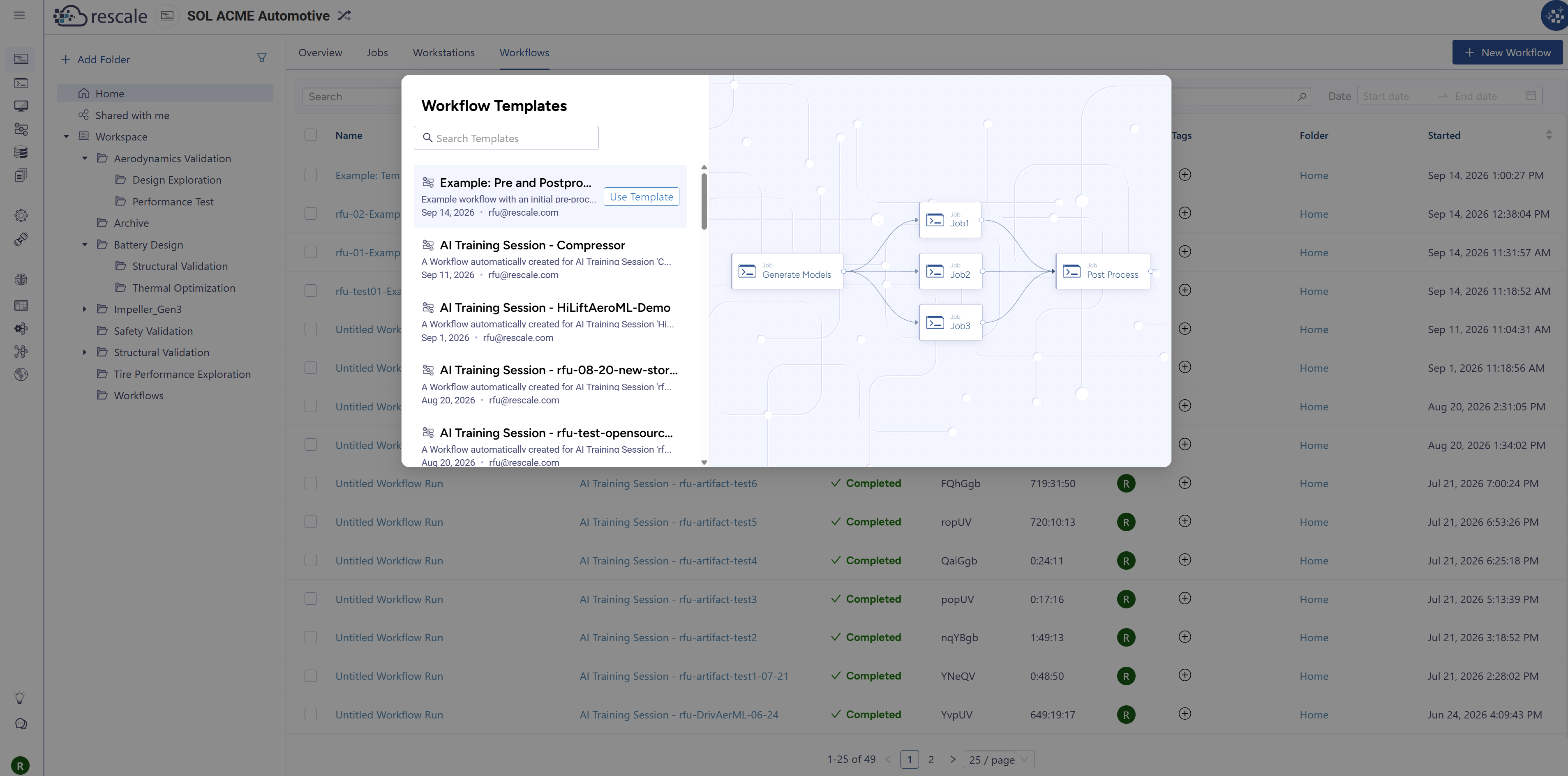
Tip: To organize workflow runs into folders, click New Workflow from the folder in which you would like to create the workflow run, from the Workflows tab of Workspace Folders.
Submit the workflow run
-
In the submission form, provide values for all required parameters:
- For String parameters, enter the value in the text field.
- For File parameters, upload a file or select one from your existing cloud storage.
- For Storage Device parameters, select a running storage device from the dropdown.
-
Review your inputs, then click Run Workflow.
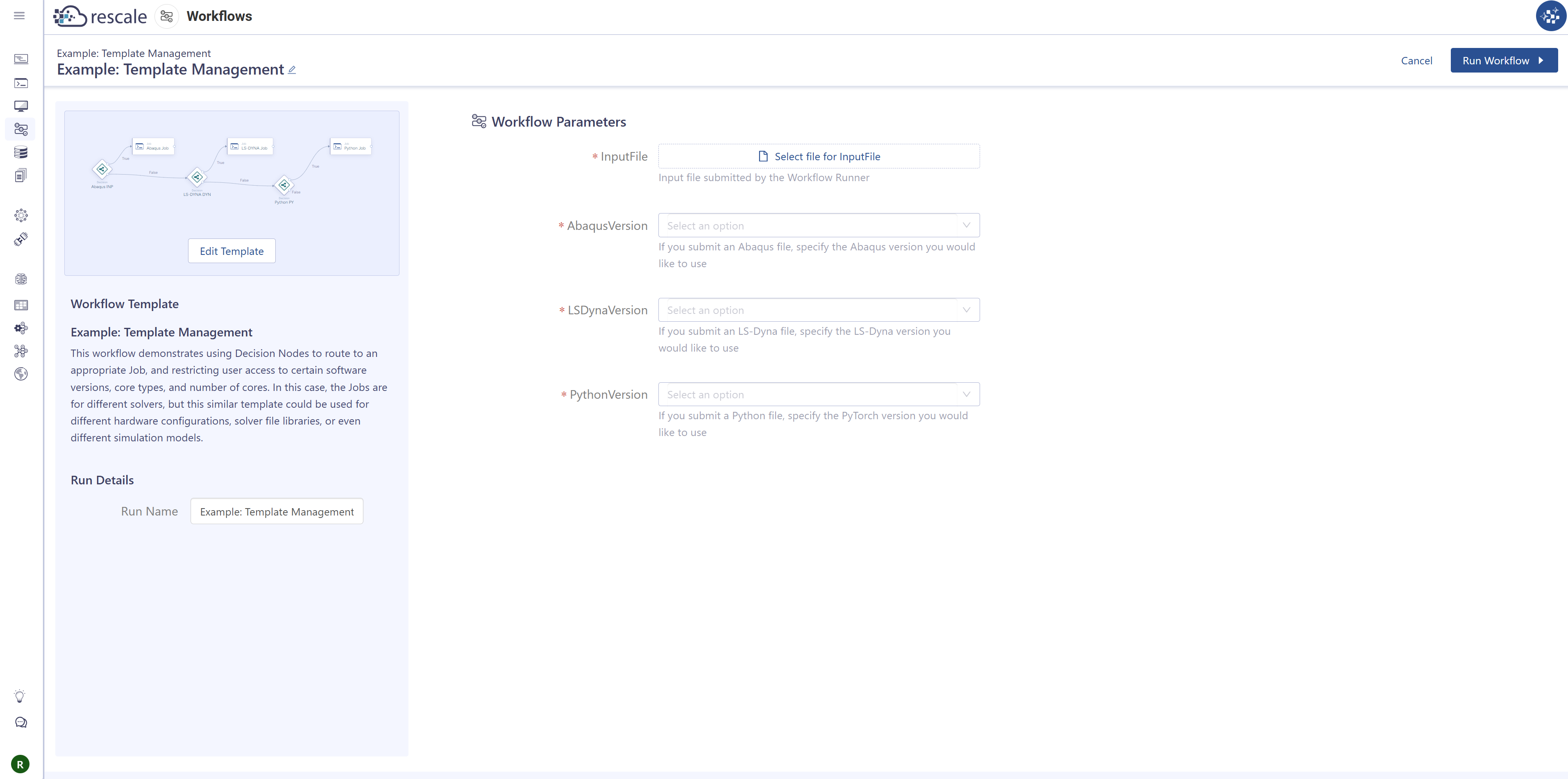
Rescale creates a workflow run and begins executing nodes in the order defined by the template.
Monitor the workflow run
- In the left navigation, click Workflows, then select Workflow Runs.
- Click the name of your run to open the run view.
- Alternatively, from the Workflows tab of Workspace Folders, click the name of your run to open the run view.
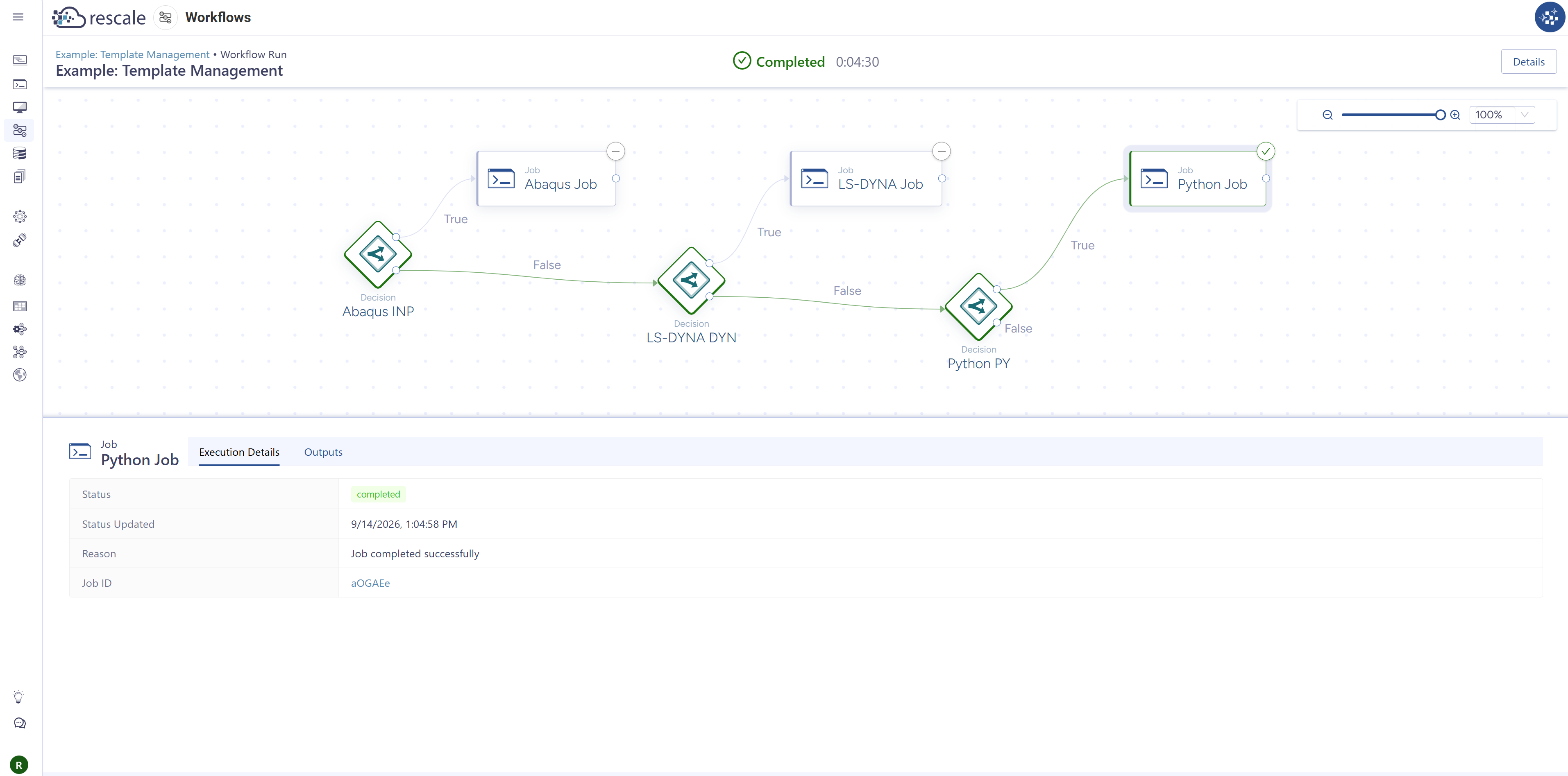
The run view shows the same canvas as the template, updated with the live status of each node:
- To inspect a specific node, click it on the canvas. The Execution Details panel shows its current status and a direct link to the underlying resource (the job, workstation, or storage device) where you can view logs and outputs.
Retry a failed workflow run
A retry re-runs only the nodes that need it. Rescale works out which nodes must execute again and reuses the outputs of the rest from the original run, so a failure late in a long pipeline does not cost you the work that already succeeded.
-
Open the workflow run that failed or partially failed.
-
Click Retry in the upper-right corner of the run view.
-
The template editor opens with a color overlay giving each node's status from the original run:
-
Fix whatever caused the failure directly in the template: correct a command, change a software setting, or point an input at a different file. Your edits are saved to the template before the retry starts.
-
Click Retry Workflow to launch the continuation run.
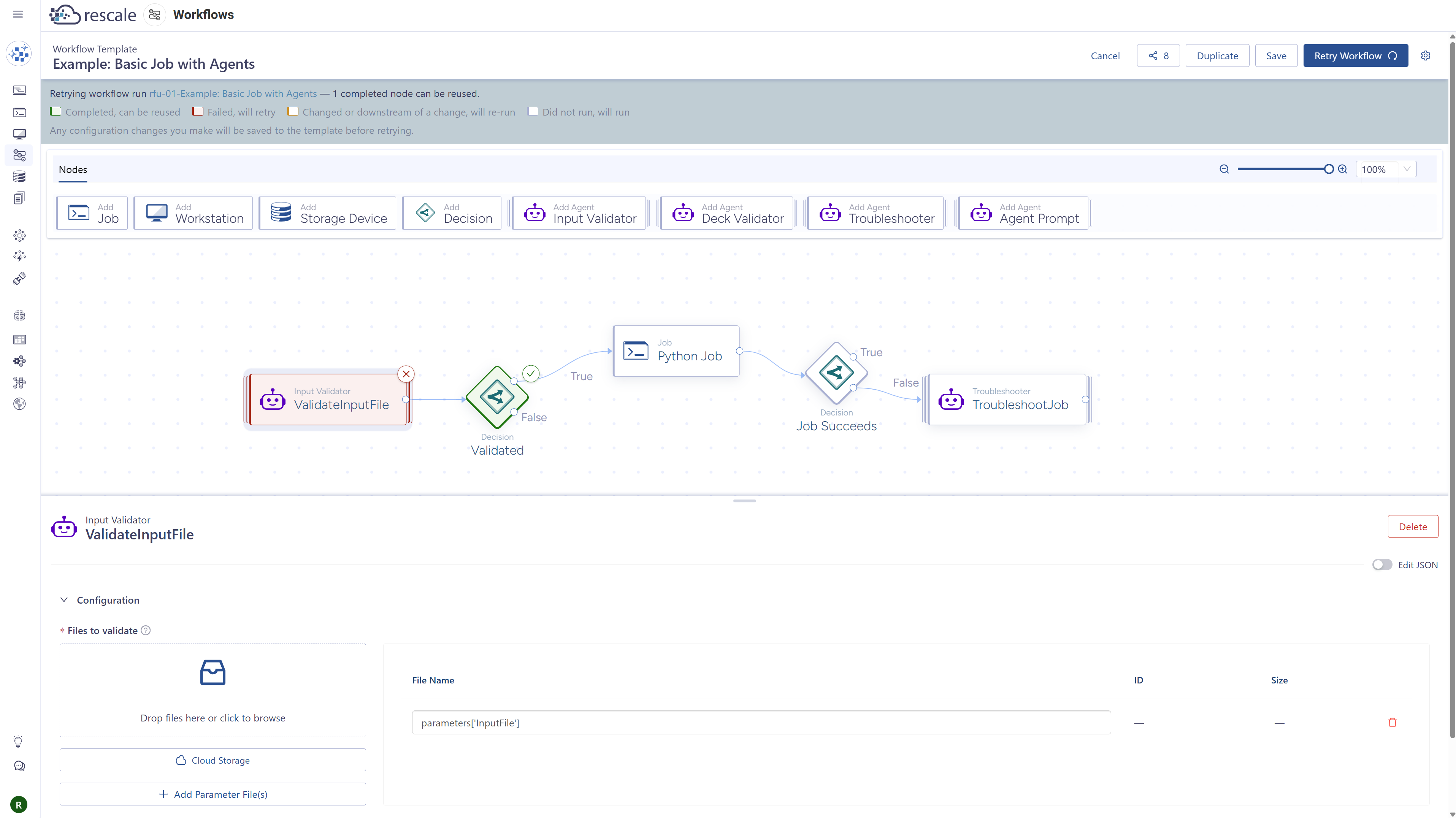
The retried run links back to the original so the history stays traceable, and a skipped node shows the outputs it reused rather than blank results.
Troubleshooting
What happens if a node fails during a workflow run? By default, if a node fails, its dependent downstream nodes will not start. If your workflow has "continue on node failure" enabled, execution continues, and any Decision node that depends on the failed node will route to the false branch.
Can I stop a running workflow? Yes. From the workflow run view, click Stop Workflow. This will halt execution of all running nodes and mark the workflow run as stopped.
How do I access outputs from a completed workflow? Click on any completed node in the run view to access the underlying resource (job, workstation, or storage device). From there, you can download output files or access shared storage.
What's next
After running your workflow:
- Review results — Click on completed nodes to access outputs and logs
- Iterate — Update your workflow template based on results and submit new runs
- Share insights — Workflow runs are owned by the submitter but can reference shared templates