Workflow templates from Rescale
Rescale provides pre-built workflow templates for common CAE scenarios to help you get started quickly. When you click + New Workflow, you'll see Rescale-provided templates that you can use as-is or duplicate and modify to fit your specific needs.
Available templates
Rescale offers four workflow templates covering common simulation pipeline patterns:
- Pre- and post-processing pipeline: Chain pre-processing, solver, and post-processing steps
- Dependent job configuration: Configure downstream jobs based on upstream results
- Admin template / job configuration management: Centralized template management for team-wide job configurations
- Agent-enhanced workflow: Include AI agents for automated validation and troubleshooting
Using a Rescale template
- In the left navigation, click Workflows and click + New Workflow
- Alternately, from the Workflows tab of the Workspace Folder view, click + New Workflow
- Browse the available Rescale templates.
- Click Use Template to run the template as-is with your own parameter values
Reviewing or modifying a Rescale template
- In the left navigation, click Workflows.
- Select a template to review the template configuration.
- Click Duplicate to create an editable copy you can customize.
When you duplicate a template, it becomes your own workflow template that you can edit, save, and share independently.
Pre- and post-processing pipeline
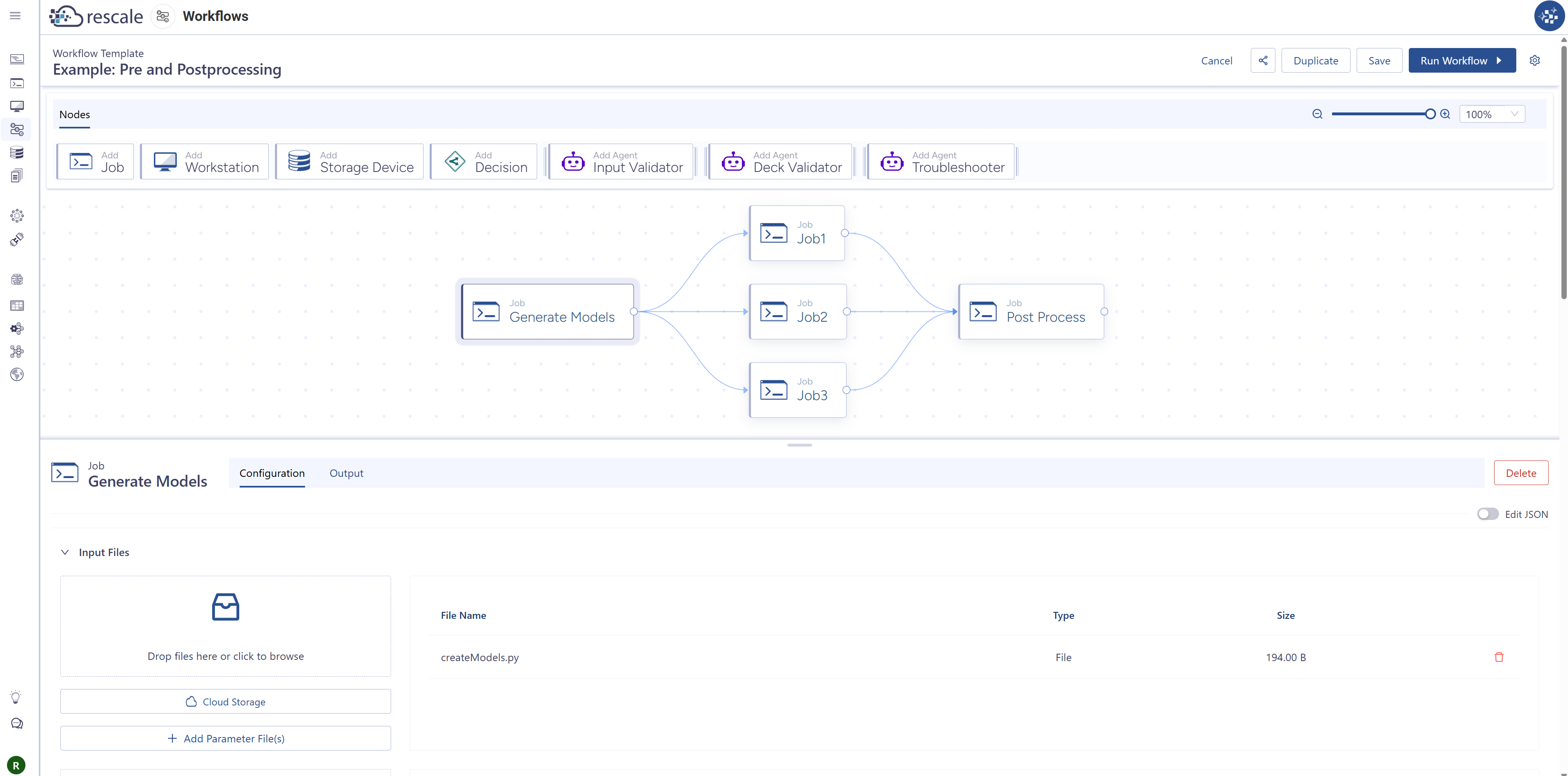
Overview
This template demonstrates a classic fan-out/fan-in pattern where a pre-processing job generates multiple input files, those files are processed in parallel by separate solver jobs, and a final post-processing job consolidates all results. File transfers between stages are handled automatically through Output Fields.
Use case
Ideal for simulation workflows where:
- A pre-processor generates multiple input files or model variants
- Each input file needs to be processed independently (can run in parallel)
- Results from all parallel runs need to be consolidated or compared
- You want to maximize efficiency by running solvers in parallel rather than sequentially
Template structure
Generate Models (Job)
- Type: Job
- Purpose: Runs a pre-processing script that creates multiple input files (Model1.py, Model2.py, Model3.py)
- Configuration: Executes a Python script (
createModels.py) that generates three separate model files as outputs - Outputs: Defines output fields for Model1.py, Model2.py, and Model3.py files that downstream jobs will consume
Job1, Job2, Job3 (Jobs): Parallel Execution
- Type: Job (three instances running in parallel)
- Purpose: Each job runs one of the model files generated by the Generate Models node
- Job1 runs Model1.py and generates Model1.txt
- Job2 runs Model2.py and generates Model2.txt
- Job3 runs Model3.py and generates Model3.txt
- Configuration: Each job receives its respective model file as a parameter input from the Generate Models node's output fields
- Outputs: Each job defines an output field for its respective .txt result file
Post Process (Job)
- Type: Job
- Purpose: Consolidates the outputs from all three parallel jobs into a single combined result file (All.txt)
- Configuration: Receives Model1.txt, Model2.txt, and Model3.txt as parameter inputs from the upstream jobs' output fields, then merges them
- Outputs: Produces All.txt containing consolidated results from all model runs
Workflow execution flow
- Generate Models runs first and creates three model files
- Job1, Job2, and Job3 start simultaneously once Generate Models completes (parallel execution)
- Post Process waits until all three jobs complete, then consolidates their outputs
This parallel execution pattern significantly reduces total runtime compared to running the three jobs sequentially.
Parameters
This template is configured to run as-is without requiring runtime parameters. All input files and configurations are built into the template. However, you can duplicate this template and add parameters for your specific use case.
Dependent job configuration
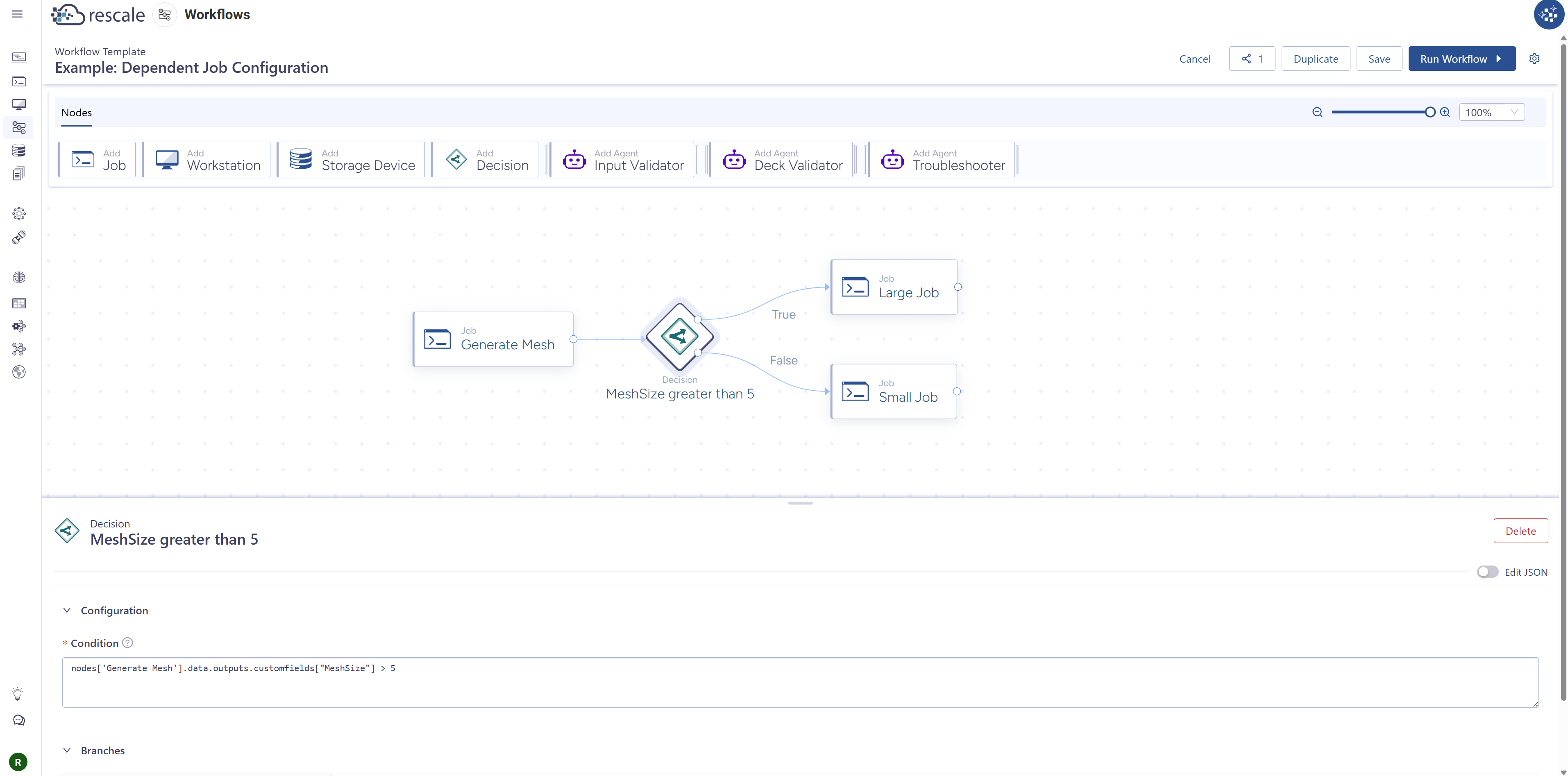
Overview
This template demonstrates how to dynamically route execution to different job configurations based on outputs from an upstream step. A Decision node evaluates a Custom Field value set by the pre-processing job and routes to either a large or small hardware configuration depending on problem size.
Use case
Ideal for workflows where:
- Hardware requirements depend on problem characteristics (mesh size, file size, element count)
- You want to automatically right-size resources rather than manually selecting hardware each time
- Cost optimization is important: avoid overprovisioning small jobs or underprovisioning large ones
- Pre-processing outputs metadata that determines solver requirements
Template structure
Generate Mesh (Job)
- Type: Job
- Purpose: Emulates a pre-processing step that creates a mesh file and captures metadata about problem size
- Configuration:
- Creates a dummy Python file (
representsMeshPassedToSolver.py) representing the generated mesh - Runs a script that adds a Custom Field called
MeshSizeto the Generate Mesh job itself - The Custom Field value represents problem characteristics (e.g., mesh element count, file size, complexity metric)
- Creates a dummy Python file (
- Outputs: The
MeshSizeCustom Field is used by the Decision node to determine routing
MeshSize greater than 5 (Decision)
- Type: Decision node
- Purpose: Evaluates the
MeshSizeCustom Field from the Generate Mesh job and routes to appropriate hardware - Configuration:
- Condition:
nodes["Generate Mesh"].data.outputs.customFields["MeshSize"] > 5 - True branch → routes to Large Job (for complex problems)
- False branch → routes to Small Job (for simple problems)
- Condition:
- Customization: The threshold (5) and Custom Field name can be modified to match your problem characteristics
Large Job (Job): True Branch
- Type: Job
- Purpose: Runs the solver with higher core count for large/complex problems
- Configuration:
- Executes
representsMeshPassedToSolver.py(the mesh from Generate Mesh) - Configured with 2 cores
- Can be customized with more cores, more memory, GPU, or different hardware types
- Executes
- Trigger: Only runs if
MeshSize > 5
Small Job (Job): False Branch
- Type: Job
- Purpose: Runs the solver with minimal resources for small/simple problems
- Configuration:
- Executes
representsMeshPassedToSolver.py(the mesh from Generate Mesh) - Configured with 1 core
- Can be customized with different small hardware configurations
- Executes
- Trigger: Only runs if
MeshSize ≤ 5
Workflow execution flow
- Generate Mesh runs and creates the mesh file
- Generate Mesh adds a Custom Field (
MeshSize) with a value representing problem size - Decision node evaluates the
MeshSizeCustom Field value - Either Large Job or Small Job runs (not both) based on the decision outcome
Key concepts
Custom Fields for Dynamic Routing
This template uses Custom Fields to pass metadata from one job to a Decision node. The pre-processing script can store any numeric or string value to a Custom Field that represents problem characteristics.
The Decision node references this Custom Field using the syntax:
nodes["<node name>"].data.outputs.customFields["<field name>"]
Extending This Pattern
You can extend this template to:
- Add more decision branches (e.g., Small/Medium/Large/XLarge hardware tiers)
- Route based on multiple conditions (mesh size AND analysis type)
- Select different solver versions or configurations based on problem type
- Chain multiple decisions for complex routing logic
- Modify the Custom Fields generated to represent mesh or compute element count, file sizes, or other complexity metrics
Parameters
This template is configured to run as-is without requiring runtime parameters. The routing decision happens automatically based on the MeshSize Custom Field. However, you can duplicate this template and add parameters for:
- Input files: Upload a real mesh file instead of generating a dummy one
- Solver version: Choose solver version per hardware tier
Admin template / job configuration management
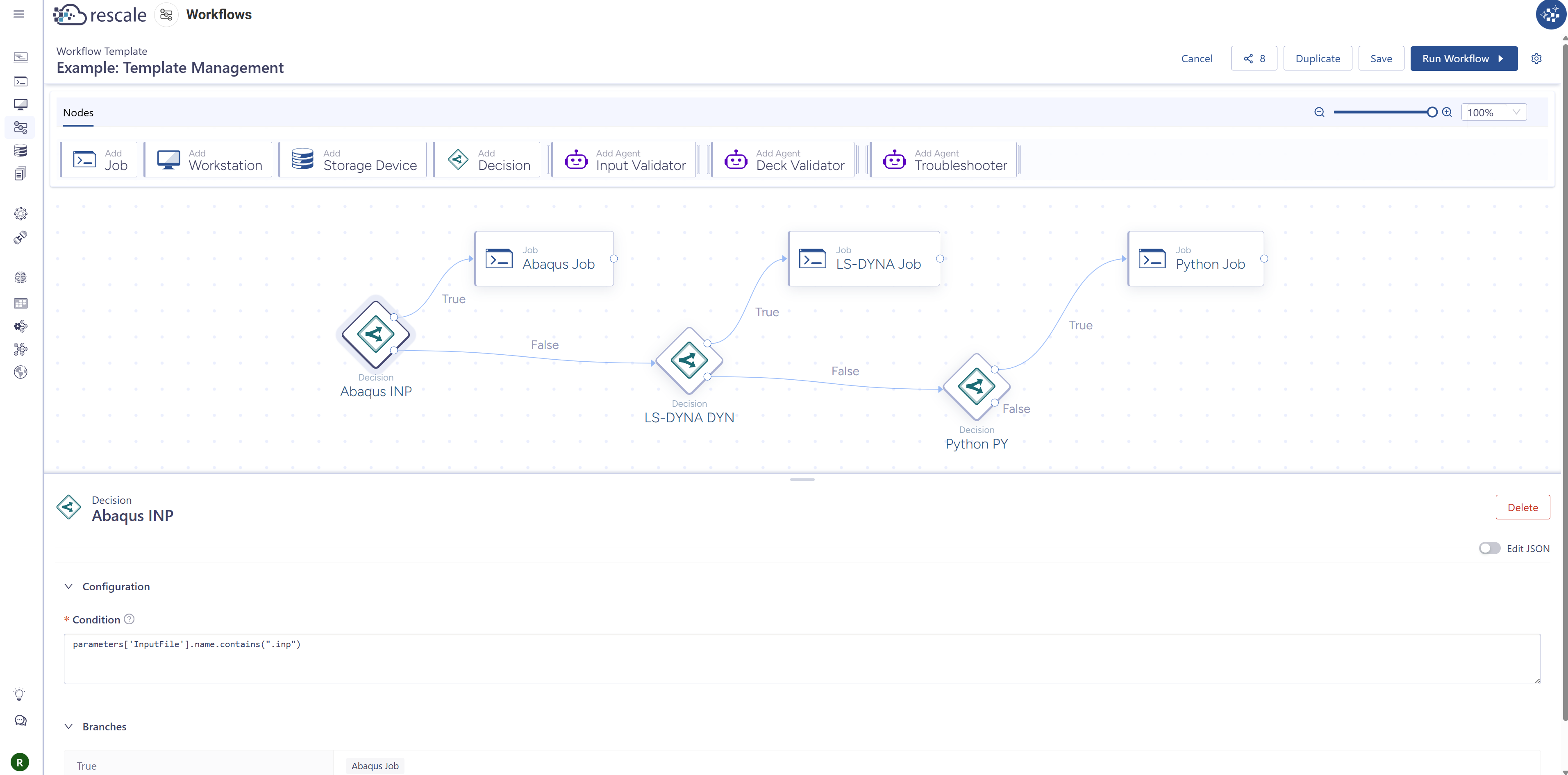
Overview
This template demonstrates centralized configuration management for multiple solvers in a single workflow. Template builders (admins or simulation experts) pre-configure approved software versions and hardware for each solver, then share the template with end users who simply upload an input file. The workflow automatically routes to the appropriate solver based on file type.
Use case
Ideal for organizations where:
- Simulation experts need to enforce standardized solver versions and hardware configurations
- Multiple users run different types of analyses (Abaqus, LS-DYNA, Python, etc.) with consistent settings
- You want to simplify the user experience, because runners don't need to know which hardware or solver version to select
- Configuration management and license compliance are critical
- You want to control access to specific software versions or hardware types
Template structure
This template uses a chain of Decision nodes to route to the correct solver job based on file extension.
Abaqus INP (Decision)
- Type: Decision node
- Purpose: Checks if the uploaded input file has a
.inpextension (Abaqus input file) - Configuration:
- Condition: Checks for Abaqus input file format
- True branch → routes to Abaqus Job
- False branch → continues to next decision (LS-DYNA DYN)
- Logic: Only one job runs per workflow execution: once a file type matches, downstream decisions are skipped
Abaqus Job (Job): True Branch
- Type: Job
- Purpose: Runs Abaqus solver with admin-specified configuration
- Configuration:
- Pre-configured Abaqus versions selected by template builder
- Pre-configured hardware (core type, core count) selected by template builder
- Receives input file from workflow parameter
- User Control: Runner can select from allowed Abaqus versions via parameter dropdown
- Admin Control: Template builder locks down hardware and available solver versions
LS-DYNA DYN (Decision)
- Type: Decision node
- Purpose: Checks if the uploaded input file has a
.dynextension (LS-DYNA input file) - Configuration:
- Condition: Checks for LS-DYNA input file format
- True branch → routes to LS-DYNA Job
- False branch → continues to next decision (Python PY)
- Trigger: Only evaluates if Abaqus INP returned false
LS-DYNA Job (Job): True Branch
- Type: Job
- Purpose: Runs LS-DYNA solver with admin-specified configuration
- Configuration:
- Pre-configured LS-DYNA versions selected by template builder
- Pre-configured hardware selected by template builder
- Receives input file from workflow parameter
- User Control: Runner can select from allowed LS-DYNA versions via parameter dropdown
- Admin Control: Template builder controls available versions and hardware
Python PY (Decision)
- Type: Decision node
- Purpose: Checks if the uploaded input file has a
.pyextension (Python script) - Configuration:
- Condition: Checks for Python file format
- True branch → routes to Python Job
- False branch → no job runs (workflow completes with no execution)
- Trigger: Only evaluates if both Abaqus INP and LS-DYNA DYN returned false
Python Job (Job): True Branch
- Type: Job
- Purpose: Runs Python script with admin-specified configuration
- Configuration:
- Pre-configured Python versions selected by template builder
- Pre-configured hardware selected by template builder
- Receives script file from workflow parameter
- User Control: Runner can select from allowed Python versions via parameter dropdown
- Admin Control: Template builder controls available versions and hardware
Workflow execution flow
- Runner uploads an input file and software version through the workflow submission form
- First Decision (Abaqus INP) checks file extension:
- If
.inp→ runs Abaqus Job, workflow completes - If not → continues to next decision
- If
- Second Decision (LS-DYNA DYN) checks file extension:
- If
.dyn→ runs LS-DYNA Job, workflow completes - If not → continues to next decision
- If
- Third Decision (Python PY) checks file extension:
- If
.py→ runs Python Job, workflow completes - If not → workflow completes with no job execution
- If
Only one job runs per workflow execution. Decision nodes evaluate in sequence until a match is found.
Key concepts
Centralized Configuration Management
Template builders (admins/experts) control:
- Which solver versions are available to users
- What hardware configurations are used for each solver
- Which file types are supported
- Any additional job settings (environment variables, license servers, etc.)
Runners (end users) only need to:
- Upload their input file
- Optionally select from admin-approved solver versions
- Click Run
Restricting User Access
This pattern is especially useful for:
- License compliance: limit which users can access expensive licensed software
- Cost control: restrict large hardware to specific use cases
- Best practices: ensure users run with validated solver versions and settings
- Onboarding: simplify the platform for new users who don't know optimal configurations
Extending This Pattern
You can adapt this template to:
- Add more solvers (OpenFOAM, ANSYS,STAR-CCM+, etc.)
- Route based on more complex conditions (file size, file content, user group)
- Include different hardware tiers per solver (Small/Medium/Large configs)
- Branch to different job configurations for the same solver (explicit vs implicit, 2D vs 3D)
- Combine with pre-processing or post-processing nodes
Parameters
Input File (File parameter)
- Type: File
- Required: Yes
- Purpose: The runner uploads their solver input file (
.inp,.dyn,.py) - Note: The workflow uses the file extension to route to the appropriate solver
Solver Version (String parameter with restricted options): Optional
- Type: String with dropdown
- Required: Yes
- Purpose: Allows runners to select from admin-approved solver versions
- Configuration: Template builder defines the allowed options
- Note: This parameter can be omitted if the template builder wants to lock the solver version entirely
Admin configuration checklist
When duplicating this template for your organization:
-
Configure each Job node:
- Select approved solver version
- Select hardware (core type, core count, memory)
- Add any required environment variables or license server settings
- Set job timeouts and other limits
-
Set up parameters:
- Create File parameter for input file upload
- Optionally create String parameters with restricted options for solver version selection
- Optionally add Project parameter for cost tracking
-
Share the template:
- Share with team members as Viewers (they can run but not edit)
- Keep Editor access restricted to admins/experts who manage configurations
Agent-enhanced workflow
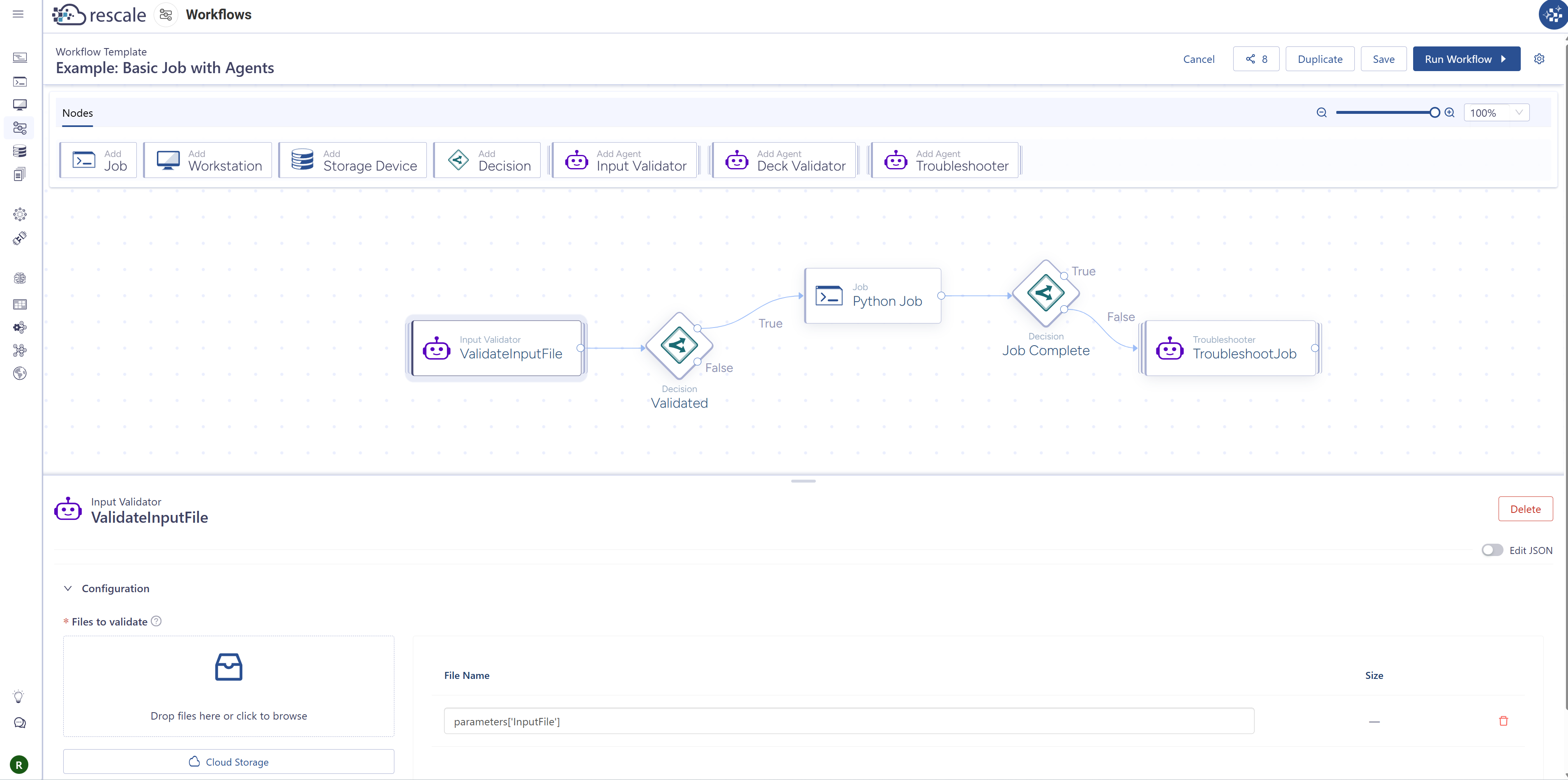
Overview
This template demonstrates how to integrate AI agents into your simulation workflows for automated input validation and failure troubleshooting. The workflow validates input files before running expensive compute jobs and automatically diagnoses failures when they occur, saving time and reducing manual debugging.
Use case
Ideal for workflows where:
- Input validation before expensive solver runs can save time and cost by catching issues early
- Automated troubleshooting can diagnose common failure modes without manual intervention
- You want to prevent jobs from running with invalid or incomplete inputs
- Simulation experts want to capture domain knowledge in automated pre-flight checks
- Reducing time-to-resolution for job failures is a priority
Template structure
This template uses a Python job as the example, but the agent pattern applies to any solver type.
ValidateInputFile (Input Validator Agent)
- Type: Input Validator Agent
- Purpose: Checks the uploaded input file for common issues before the job runs
- Configuration:
- Receives the input file as a parameter
- Validates file format, syntax, required fields, and compatibility
- Returns a validation status (pass/fail) and detailed feedback
- Value: Catches errors before compute resources are allocated, preventing wasted time and cost on jobs that would fail immediately
Validated (Decision)
- Type: Decision node
- Purpose: Routes execution based on whether the input file passed validation
- Configuration:
- Condition: Checks the validation agent's output status
- True branch → Python Job runs (validation passed)
- False branch → Workflow stops (validation failed, no job runs)
- Outcome: Only valid inputs proceed to the compute job
Python Job (Job): True Branch
- Type: Job
- Purpose: Runs the Python script if input validation succeeded
- Configuration:
- Executes the validated Python script
- Pre-configured hardware and Python version
- Receives validated input file from workflow parameter
- Trigger: Only runs if ValidateInputFile agent returned success
Job Complete (Decision)
- Type: Decision node
- Purpose: Checks whether the Python Job completed successfully or failed
- Configuration:
- Condition: Checks the job's completion status
- True branch → Workflow completes successfully
- False branch → TroubleshootJob agent runs to diagnose the failure
- Outcome: Automatic failure analysis when the job doesn't complete successfully
TroubleshootJob (Troubleshooter Agent): False Branch
- Type: Troubleshooter Agent
- Purpose: Analyzes job failure and proposes a fix
- Configuration:
- Receives job logs, error messages, and execution details from the failed Python Job
- Diagnoses the root cause (syntax errors, missing dependencies, runtime errors, resource limits)
- Generates a report with findings and recommended fixes
- Optionally proposes a corrected version of the input script
- Value: Reduces time-to-resolution by automatically diagnosing failures instead of requiring manual log analysis
- Trigger: Only runs if Python Job failed
Workflow execution flow
Happy Path (Validation Passes, Job Succeeds):
- ValidateInputFile checks the input file
- Validation passes → Validated Decision routes to True branch
- Python Job runs successfully
- Job Complete Decision routes to True branch
- Workflow completes ✓
Validation Failure Path:
- ValidateInputFile checks the input file
- Validation fails → Validated Decision routes to False branch
- Workflow stops (no job runs, no compute cost incurred)
- User reviews validation feedback and fixes input file
Job Failure Path (Validation Passes, Job Fails):
- ValidateInputFile checks the input file
- Validation passes → Validated Decision routes to True branch
- Python Job runs but fails (runtime error, timeout, etc.)
- Job Complete Decision routes to False branch
- TroubleshootJob analyzes the failure and proposes fixes
- User reviews troubleshooting report and resubmits with corrected input
Key concepts
Why Use Agents in Workflows?
Agents bring automated intelligence to pipeline stages that traditionally require manual intervention:
- Pre-flight validation prevents wasted compute by catching bad inputs before jobs run
- Automated diagnostics reduce time spent manually analyzing logs and error messages
- Consistency applies the same validation rules and troubleshooting logic to every run
- Knowledge capture embeds expert knowledge (what to check, how to diagnose) into the pipeline itself
Available Agent Types
Rescale provides two agent types for workflows:
-
Input Validator: Checks input files before jobs run
- Validates file format and syntax
- Checks for required fields or parameters
- Verifies compatibility with solver versions
- Flags common errors or warnings
-
Troubleshooter: Analyzes failed jobs and proposes fixes
- Examines job logs and error messages
- Identifies root cause (syntax, dependencies, resources, etc.)
- Suggests corrective actions
- Can propose corrected input files
When to Use Each Agent
- Input Validator → Use before any expensive job where input errors are common
- Troubleshooter → Use after jobs prone to failure where manual debugging is time-consuming
Extending This Pattern
You can adapt this template to:
- Add validation and troubleshooting to multi-step workflows (validate before each solver stage)
- Use agents with real solvers (Abaqus, LS-DYNA, OpenFOAM, etc.) instead of Python
- Combine with other patterns (validate inputs before a Pre/Post-Processing Pipeline)
- Add custom validation rules specific to your domain
Parameters
InputFile (File parameter)
- Type: File
- Required: Yes
- Purpose: The Python script (or solver input file) to validate and run
- Usage:
- Passed to ValidateInputFile agent for validation
- Passed to Python Job for execution (if validation passes)
- Included in TroubleshootJob analysis (if job fails)
Benefits of this template
Cost Savings
- Catch invalid inputs before allocating compute resources
- Avoid wasted job runs that fail immediately due to input errors
Time Savings
- Automated validation is instant vs. waiting for a job to fail
- Automated troubleshooting is faster than manual log analysis
Consistency
- Same validation checks applied to every run
- Same troubleshooting logic applied to every failure
Onboarding
- New users get immediate feedback on input file issues
- Troubleshooting agent teaches users what went wrong and how to fix it
Customizing templates
After duplicating a Rescale template, you can customize it like any workflow template:
- Add or remove nodes
- Modify node configurations
- Add or change parameters
- Adjust connections and execution order
- Save and share your customized version
See Building Workflow Templates for detailed instructions on modifying workflow templates.
What's next
After selecting a template:
- Running workflows — run the template with your own inputs
- Building workflow templates — create your own template from scratch